Getting Started
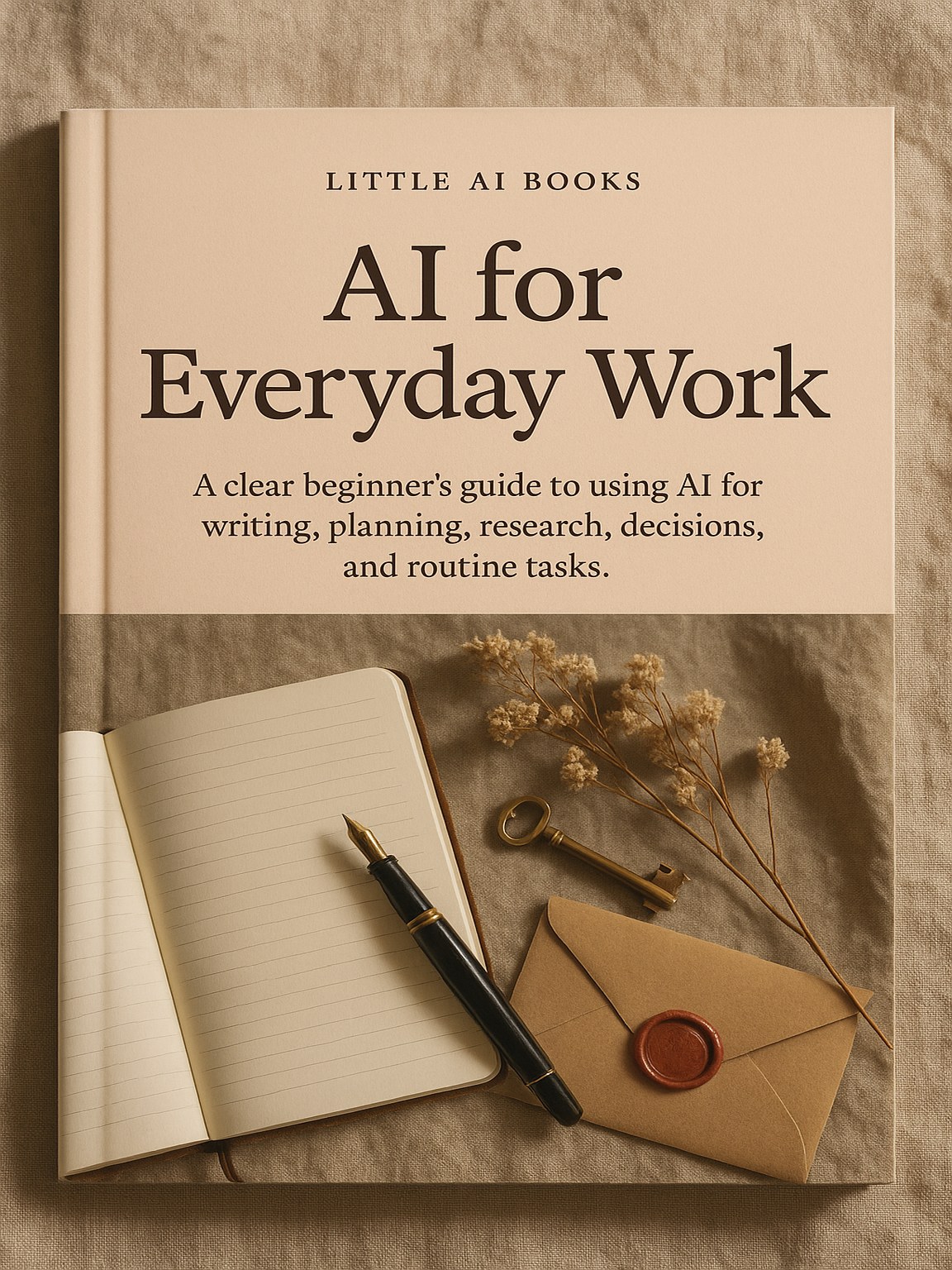
AI for Everyday Work
A clear beginner’s guide to using AI for writing, planning, research, decisions, and routine tasks.
Anyone can use this page. Copy the prompt and try it today.
$5.99
Getting Started
A clear beginner’s guide to using AI for writing, planning, research, decisions, and routine tasks.
Anyone can use this page. Copy the prompt and try it today.
$5.99
Little AI Books
A clear beginner’s guide to using AI for writing, planning, research, decisions, and routine tasks.
You stay the editor. The model drafts. You decide.
$5.99
Getting Started — one small job at a time
You are choosing one app, not every app.
Rosa opens the App Store on her iPad. On an Android device, she would open Google Play.
You may use the official website instead. The addresses are on page 20.
Look-alike apps may use similar names or logos. Avoid apps that promise secret powers, instant riches, or guaranteed answers.
A free option may be available where you live. Paid plans are not needed for these lessons. Offers vary by country.
Do not: Agree to a trial just because a large button is bright or easy to tap.
Next: Open the app and read each account screen.
Stop here: when the official app opens.
You are learning the one part of the screen that matters first.
The typing box is usually near the bottom. It may say 'Message,' 'Ask anything,' or something close to that.
COPY THIS
The app may show a microphone, camera, plus sign, or other tools. Leave those alone for now.
If the keyboard covers the Send button, look for an arrow beside the typing box. You can also try hiding the keyboard.
Do not: Add your address or account details.
Next: Read the answer and pick one useful idea.
Stop here: You have sent a first prompt.
You are changing an answer without starting again.
Malik uses his phone for almost everything. His first AI answer fills several screens.
COPY THIS
You can ask for another change. Try 'Put the most important point first' or 'Explain that word.'
Shorter answers can lose warnings, dates, prices, or limits. Look back at the first answer.
For truly larger letters, use the text-size or accessibility settings on your device.
Do not: Assume a neat short answer contains every important fact.
Next: Keep the clearest version without losing key details.
Stop here: after one useful change.
You are moving a short sample from this book into the AI app.
If Copy does not appear, tap the marked words once. You may need to tap three dots or a small arrow.
If selection is hard, copy one line at a time. Typing a short sample yourself is also fine.
If Paste does not appear, tap the typing box once. Then press and hold again. Look for the blinking line.
Do not: Send square-bracket examples unchanged when they need your words.
Next: Practise with the short box on page 8.
Stop here: when the copied words appear in the AI box.
You are using voice typing while checking every word.
Rosa finds long typing tiring. She taps the microphone on her iPad keyboard.
COPY THIS
Your device may ask for microphone permission. Read the choice first.
Voice typing can mishear names and uncommon words. Noise can make this worse.
Do not: Speak passwords, bank codes, health records, or another person's private news.
Next: Correct the text with the keyboard, then send it.
Stop here: after one voice-typed question.
You are making a first draft of a message that you will edit.
Rosa wants to thank a neighbour for collecting a parcel. She wants to sound warm, not grand.
COPY THIS
The AI may add a promise, gift, feeling, or event you never mentioned. Delete it.
Do not: Send a draft before checking every claim and promise.
Next: Read the final message as if you had received it.
Stop here: when it sounds like you.
You are getting meal ideas from food you can confirm yourself.
Malik has rice, tomatoes, and beans. He wants a simple dinner.
COPY THIS
A typed list is safer for a first try. If you later use a photo, remove faces, letters, receipts, medicine labels, addresses, and screens.
AI can mistake one food for another. It cannot smell spoiled food or guarantee allergy safety.
Do not: Let the app guess an ingredient, allergy, or use-by date.
Next: Confirm the ingredients before cooking.
Stop here: when you have one realistic idea.
You are using AI as a reading helper, not as the final source.
Rosa receives a long building notice. She removes her name, address, account number, signature, and neighbour details.
COPY THIS
The answer may make vague words sound certain. It may misunderstand who must act.
For an important notice, use the organisation's official site or a number you already trust.
Do not: Paste the whole page when a cleaned section is enough.
Next: Mark each date and action on the original.
Stop here: with questions for the sender.
You are describing a problem without sharing the keys to an account.
Malik gets an email that claims to be from his bank. He does not paste it or click its link.
COPY THIS
Never share a password, PIN, one-time code, full card number, account number, identity document, security answer, or recovery phrase.
AI cannot prove who sent a message.
Do not: Open a live link or call a number from a suspicious message.
Next: Reach the company through a source you trust.
Stop here: before any payment or account change.
You are making a calm plan when a message creates fear or rush.
Rosa gets a text from someone claiming to be family. The sender wants money now and says not to call.
COPY THIS
Urgency, secrecy, threats, odd payment methods, and remote-access requests are warning signs. They do not prove identity.
Do not: Paste the scam link, share private notifications, or give anyone screen control.
Next: Speak to a real person through a known number.
Stop here: until identity is checked.
You are making a question list, not asking AI to choose for you.
AI may explain common words or help you remember questions. It should not diagnose, choose medicine, settle legal rights, or pick an investment.
COPY THIS
For health matters, keep this to questions. Do not ask for a diagnosis, medicine name, or dose. Use local emergency or professional services for urgent concerns.
Do not: Treat a polished list as expert advice.
Next: Add your own question.
Stop here: when the list helps you speak clearly.
You are separating useful drafting from facts that need outside checking.
Malik asks about a local event. The answer gives an exact date and price. Both may be old or wrong.
COPY THIS
A second answer can repeat the first mistake. A link can also be false.
Blank, Schubert, and Zhang studied household use linked with productive digital tasks such as education and job search. Their efficiency results are model estimates, not timed chores. OpenAI and NBER researchers found that editing existing writing is a common work use. Neither study proves every answer is right.
Do not: Use confidence as evidence.
Next: Check one important claim elsewhere.
Stop here: when you have opened a real source.
You are describing what you see before changing settings.
Rosa cannot find Paste. She pauses instead of trying every button.
COPY THIS
The AI cannot truly see your screen unless you share an image. Even then, it may misunderstand it. Check screenshots for private details.
Never follow steps that erase the device, reset an account, turn off security, install unknown software, or give remote access.
Do not: Keep tapping when money, photos, or security may be affected.
Next: Use official device help or ask a trusted person beside you.
Stop here: after one safe step.
You are repeating the simple pattern with a job that matters to you.
Choose a message, a shorter answer, a meal idea, a plain explanation, meeting questions, or a small plan.
COPY THIS
You do not have to practise every day. Missing a day does not put you behind. Repeat what helped most.
Do not: Turn practice into a long list.
Next: Save only work you have read and checked.
Stop here: One useful job is enough.
Use these links to open provider websites and check the research mentioned on page 17.
Listings vary by country. Check the publisher before installing.
Blank, Grant; Schubert, Gregor; Zhang, Ru. 'The Household Impacts of Generative AI.' March 2026. Blank is at Stanford Graduate School of Business, Schubert at UCLA, and Zhang at USC. The paper discusses productive digital tasks and model-based estimates.
https://arxiv.org/abs/2603.03144
OpenAI. 'How People Are Using ChatGPT.' September 15, 2025. Related research appears as NBER Working Paper 34255.
https://openai.com/index/how-people-are-using-chatgpt/
https://www.nber.org/papers/w34255
Open a source before trusting a title or quote. Check who published it, its date, and the exact claim.
Stop here: You now know how to open an app, ask, improve, copy, and check.